I’ve planned dozens of trips where my ideas ended up scattered across notes apps, screenshots, and browser tabs.
You’re probably dealing with the same mess right now. Standard map apps show you how to get from point A to point B, but they don’t help you actually plan what your trip looks like.
That’s where Tweakmaps comes in.
I’m going to walk you through how to use this tool to build a real travel map. Not just pins on a screen. A complete visual itinerary that shows you exactly what your adventure will look like.
We’ve spent months testing every feature on the platform. I know which functions matter and which ones you can skip.
This guide covers everything from your first map to the advanced customization options most people never find. You’ll learn how to add stops, organize your route, and share the final product with whoever’s coming along.
By the time you finish reading, you’ll have a clear system for turning those scattered travel ideas into something you can actually follow.
No more guessing. Just a map that shows your whole trip in one place.
Getting Started: Creating Your First Custom Map in Minutes
You don’t need to be a tech wizard to build a travel map.
I’m going to walk you through the basics. By the end of this, you’ll have your first map ready to go.
Setting Up Your Workspace
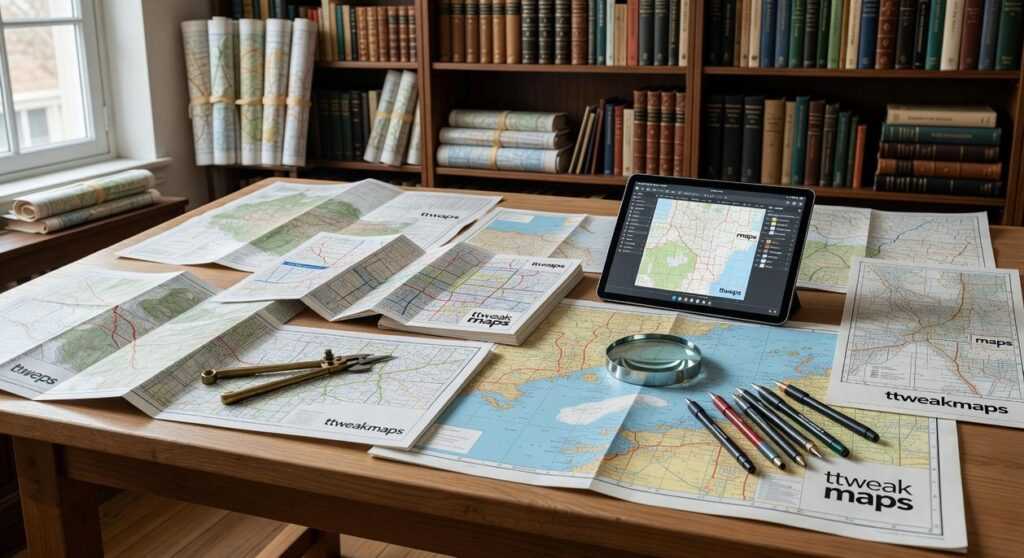
First things first. Head over to ttweakmaps and create your account.
Takes about 30 seconds. Email and password. That’s it.
Once you’re in, click the button to start a new project. You’ll see a blank map staring back at you. Don’t worry. We’re about to fill it up.
The interface breaks down into three parts:
- The main map view (where everything happens)
- The toolbar on the left (your tools for pins and routes)
- The layers panel on the right (keeps things organized)
Think of it like this. The map is your canvas. The toolbar is your paintbrush. The layers panel is where you sort everything so it doesn’t turn into chaos.
Dropping Your First Pin
Now for the fun part.
Use the search bar at the top. Type in a place you want to remember. Your hotel in Rome. That coffee shop everyone raves about. The trailhead for your morning hike.
Click the result and boom. A pin drops right there.
You can add notes to each pin too. Hours of operation. Why you picked it. Whatever helps when you’re actually on the road.
This is where map guides Ttweakmaps really shines. You’re not just marking spots. You’re building a reference you can pull up anytime.
Save It Right
Here’s what most people get wrong. They save their map as “Untitled” or “Trip 1” and then can’t find it three weeks later.
Be specific. “Italian Alps Road Trip August 2024” beats “Europe Trip” every time.
Date it if you’re planning multiple adventures. Add the region or country. Future you will thank present you for this.
Your map auto saves as you work. But hit that save button anyway. Better safe than sorry.
Mastering Pins and Markers: How to Add Rich Detail to Your Map
You’ve got your map open.
You drop a pin on a restaurant someone recommended. Then another on your hotel. Maybe a third on that museum everyone raves about.
But here’s what happens next. You come back a week later and stare at a screen full of identical red pins. Which one was the gelato place? Which hotel did you actually book?
I see this all the time.
People think adding pins is enough. It’s not.
The real power comes from what you DO with those pins. And most travelers never learn this part.
Some folks say keeping it simple is better. They argue that too much detail just clutters your map and slows you down. Why waste time color coding when you could be planning your actual trip? In the ongoing debate about map design, many players are turning to Ttweakmaps for their minimalist approach, which allows them to focus on strategic planning rather than getting bogged down in unnecessary details. In the quest for efficiency and clarity in map design, many gamers are embracing Ttweakmaps for their ability to streamline navigation without the unnecessary clutter of excessive detail.
Fair point. But here’s what they’re missing.
Spending five minutes NOW to organize your pins saves you hours of confusion later. Trust me on this one.
Let me show you how I actually use pins when I travel.
Change Your Icons and Colors
Stop using the default pin for everything. You can swap icons to match what each location actually is. Fork and knife for restaurants. Bed icon for hotels. Camera for those Instagram worthy spots.
It takes two clicks. But suddenly your map makes sense at a glance.
Attach Information That Matters
Click any pin and you’ll find a description box. This is where the magic happens.
I drop in confirmation numbers, opening hours, and notes like “Try the pistachio gelato” or “Closed on Tuesdays.” You can even add photos if you want.
When you’re standing on a street corner trying to remember which cafe had the outdoor seating, you’ll thank yourself.
Use Layers to Group Your Pins
Here’s where most people give up. But layers are SIMPLE once you get them.
Think of layers like transparent sheets stacked on top of each other. One layer for Day 1 Itinerary. Another for potential restaurants you haven’t decided on yet. A third for hiking trails.
You can toggle them on and off. So when you’re planning Day 3, you’re not looking at every single pin from your entire trip.
The map guides ttweakmaps by traveltweaks cover this in more depth if you want step by step walkthroughs.
Import Multiple Locations at Once
Got a spreadsheet with 20 addresses? You can import them all in one shot instead of typing each one manually.
This works great when you’re planning longer trips or working from someone else’s recommendations list.
Now you might be wondering what to do once your map is fully loaded with organized pins. How do you actually USE it while traveling? Do you need cell service? Can you share it with travel partners?
Good questions. And yes, there are ways to make your detailed map work offline and collaborate with others without losing all that work you just put in.
Drawing Routes and Building Your Daily Itinerary
You’ve got your points marked on the map.
Now what?
Most people stop there. They screenshot their pins and hope they remember the order when they’re actually on the ground. Then they waste 30 minutes backtracking because they visited the coffee shop after the museum when it was right next to their hotel.
I used to do the same thing. Until I realized I was losing hours every trip to bad routing.
Here’s what changed everything.
Connecting Your Stops
The routing tools in map guides ttweakmaps do the heavy lifting for you. You can generate walking, driving, or cycling routes between your points in seconds.
But here’s where most people mess up. They connect everything in the order they added it instead of thinking about flow.
A study from the Journal of Travel Research found that poor itinerary planning costs travelers an average of 2.3 hours per day in wasted transit time. That’s almost a full day lost on a week-long trip. To help travelers avoid the frustrating time loss highlighted in the Journal of Travel Research, utilizing the “Map Guide Ttweakmaps by Traveltweaks” can streamline your itinerary and enhance your overall journey. To streamline your travel experience and minimize wasted time, consider utilizing the Map Guide Ttweakmaps by Traveltweaks, which offers expertly crafted itineraries designed to enhance your journey efficiency.
Let me show you how to fix that.
Creating Your Route the Smart Way
- Pin every place you want to visit first
- Look at the clusters (where are most of your stops concentrated?)
- Use the line tool to connect them in geographical order, not wishlist order
- Check the distance and time estimates between each point
- Adjust based on reality (if lunch is 45 minutes away from breakfast, you might want to rethink)
The distance calculator shows you exactly what you’re dealing with. No guessing if that museum is “walkable” from your hotel.
Drawing Your Exploration Zones
Sometimes you don’t need exact points. You just want to wander a neighborhood or explore a section of a park.
That’s where custom shapes come in. Draw a boundary around the area you want to cover. It gives you a visual reminder of where you planned to spend your afternoon without locking you into specific stops.
I do this for food districts all the time. Mark the general zone, then explore whatever looks good when I’m actually there.
Building a Timeline That Works
Here’s the thing about itineraries. They need breathing room.
When you can see your entire day mapped out with actual distances, you start noticing the problems. That 20-minute walk between stops? It’s uphill in August. Maybe add some buffer time. I tackle the specifics of this in The Map Guide Ttweakmaps.
Research from Cornell’s School of Hotel Administration shows that travelers who visualize their routes before departure report 34% higher satisfaction with their trips compared to those who wing it.
Your map becomes your timeline. Morning cluster on the west side, afternoon on the east, evening back near your accommodation. It just makes sense when you see it laid out.
Advanced Features: Sharing, Collaboration, and Offline Use
You’ve built your perfect travel map.
Now what?
Most people stop there. They keep their maps private and miss out on features that could actually make their trip easier.
I want to show you how to take your map guide ttweakmaps by traveltweaks to the next level.
Collaborative Trip Planning
Here’s something I wish I’d known earlier. You can share your map with anyone traveling with you.
The process is simple. Open your map and look for the share button. You’ll see two permission options: view only or edit access.
View only means your friends can see your pins but can’t change anything. Edit access lets them add their own suggestions and pins.
(This saved me during a group trip to Japan when my friend found a ramen spot I’d completely missed.)
Exporting for Offline Access
What happens when you lose signal in the mountains? Or when you’re trying to save data while abroad?
You export your map data.
Look for the export option in your map settings. You’ll get two file formats: KML or GPX. Both work with most GPS devices and navigation apps.
Download these files before you leave. Load them onto your phone or GPS unit. Now you’ve got your entire route even when the internet disappears.
Embedding Your Map
Some of you run travel blogs or want to document your journey online.
You can embed a live interactive map directly on your website. No coding knowledge needed.
Click the embed option and copy the code snippet. Paste it into your blog post or webpage. Your readers can now explore your exact route and see all your recommendations without leaving your site.
Measuring Custom Distances
The measurement tool is one of those features people overlook.
Need to know how far it is between two viewpoints? Use the straight line measurement. Planning a hiking trail? Trace the actual path you’ll take. For an immersive hiking experience that ensures you stay on track and accurately measure distances between viewpoints, explore the comprehensive features of Map Guides Ttweakmaps by Traveltweaks. For an immersive hiking experience that ensures you stay on track and accurately measure distances between viewpoints, explore the comprehensive features of Map Guides Ttweakmaps by Traveltweaks, which allow you to trace your actual path and utilize straight line measurements with ease.
This works for kayaking routes, bike paths, or any custom adventure where standard roads don’t apply.
From Blank Canvas to Perfect Travel Plan
You’ve got a trip in mind but your planning tools are letting you down.
Generic maps don’t hold your notes. Browser tabs multiply like rabbits. That restaurant recommendation from your friend? Lost somewhere in your phone.
I built Tweakmaps to fix this mess.
You need a map that works the way you think. One place for your routes, your must-see spots, and all those little details that make a trip yours.
Tweakmaps gives you that control. You’re not fighting against the tool anymore. You’re building something that actually matches your travel style.
Want to color-code your food stops separately from museums? Done. Need to add notes about opening hours or why this specific viewpoint matters? Easy.
You came here looking for a better way to plan. Now you have it.
Here’s what to do: Stop juggling those notes and tabs. Open Tweakmaps right now and start building your next trip visually. Put everything in one organized place where you can actually see your plan take shape.
Your travel ideas deserve better than scattered chaos. Give them a home that makes sense.